- Easy installation of commonly used printers and applications (web browsers, Office, Adobe Reader, VPN software, and more)
- Safe way for IT (and you) to update software on college owned computers.
- Reduces risk to you and the college by managing certain security settings, such as disk encryption and screen lock
- Helps improve software version consistency within departments.
- Enables rapid deployment of critical security patches for software on faculty, staff, and other college-owned computers.
- Improves support and troubleshooting capabilities for IT
Reed-Owned Mac Management
IT manages Reed-owned Apple computers to provide easy software & printer installation, enforce required security settings, and ensure the system remains up-to-date. This applies to both academic and administrative computers.
What are the benefits?
What is the Self-Service user experience?
An Application called Self Service+ (accessible from the Applications folder or the menu bar at the top) allows users to easily install site-licensed and other commonly used software, in addition to printers and copiers.
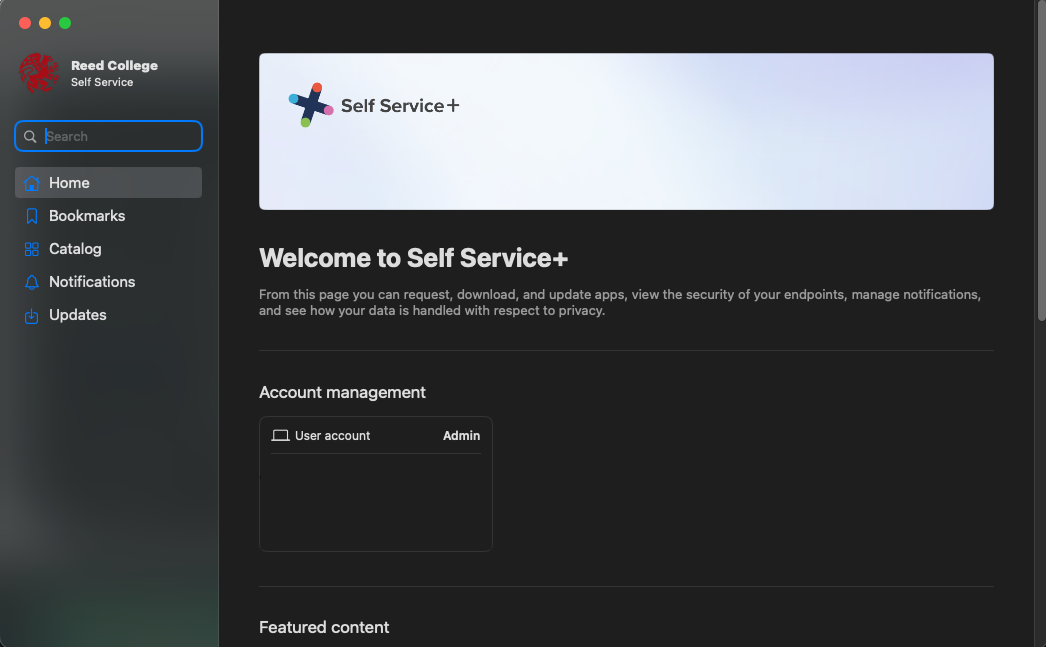
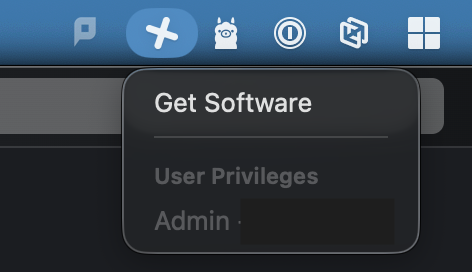
Self Service+ also includes a menu bar icon by default. In macOS Tahoe (version 26), you can remove the icon by holding the command key and clicking and dragging the icon off of the menu bar.
You may receive a notification when an application needs to be updated. In some cases, it may be necessary to quit the application first.

When Apple releases OS updates, a restart is required. Users will be notified by an on-screen prompt. Learn more about how OS updates are managed by IT.
What software packages does IT manage?
What system settings are managed?
Endpoint detection and response (EDR)
EDR software is installed on Reed computers to provide real-time protection from malware and other more severe security threats such as ransomware. Because this tool securely analyzes network traffic, you may encounter a warning similar to the ones below:
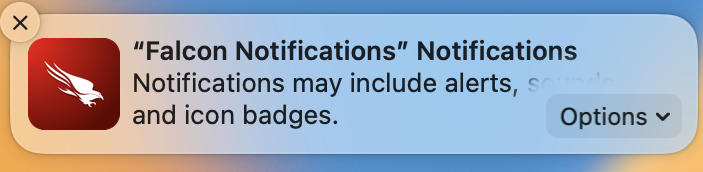
If prompted, select Allow to continue to allow the tool to perform its functions.
When a malicious process is blocked or quarantined on your computer, you may see the following notifications: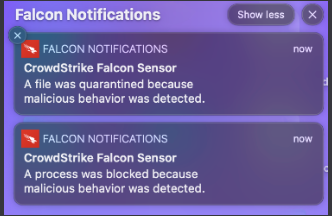
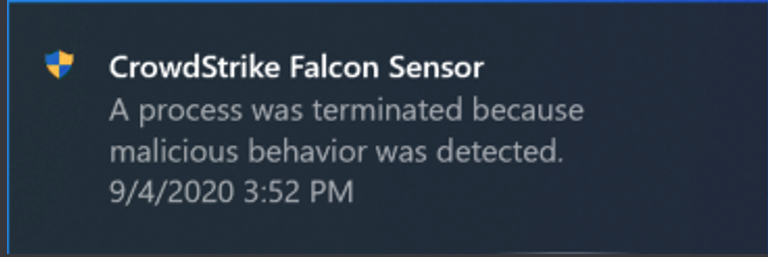
If you see these notifications and have questions, please reach out to cus@reed.edu.