Writing Your Thesis in LibreOffice
Preface
The LibreOffice thesis template is based on the Microsoft Word thesis template, as LibreOffice itself is based on Word. For that reason, this page mainly catalogues the differences between using the LibreOffice template and the Word template. For a basic understanding of this type of template, please refer to the Microsoft Word help page.
Why use LibreOffice?
- Open source, free, no licensing
- Can be used by non-Mac Operating Systems
- Same on all platforms
Template
Follow the template! Formatting is already set, and the instructions are thorough. Click here to download the LibreOffice template.
Conversion
Saving a LO file as .docx and opening it in Word will break it! Opening a .docx file in LO will also break it! Save your file as .odt.
Pagination
- Unlike in Word, all pages in LibreOffice are in a style with different properties.
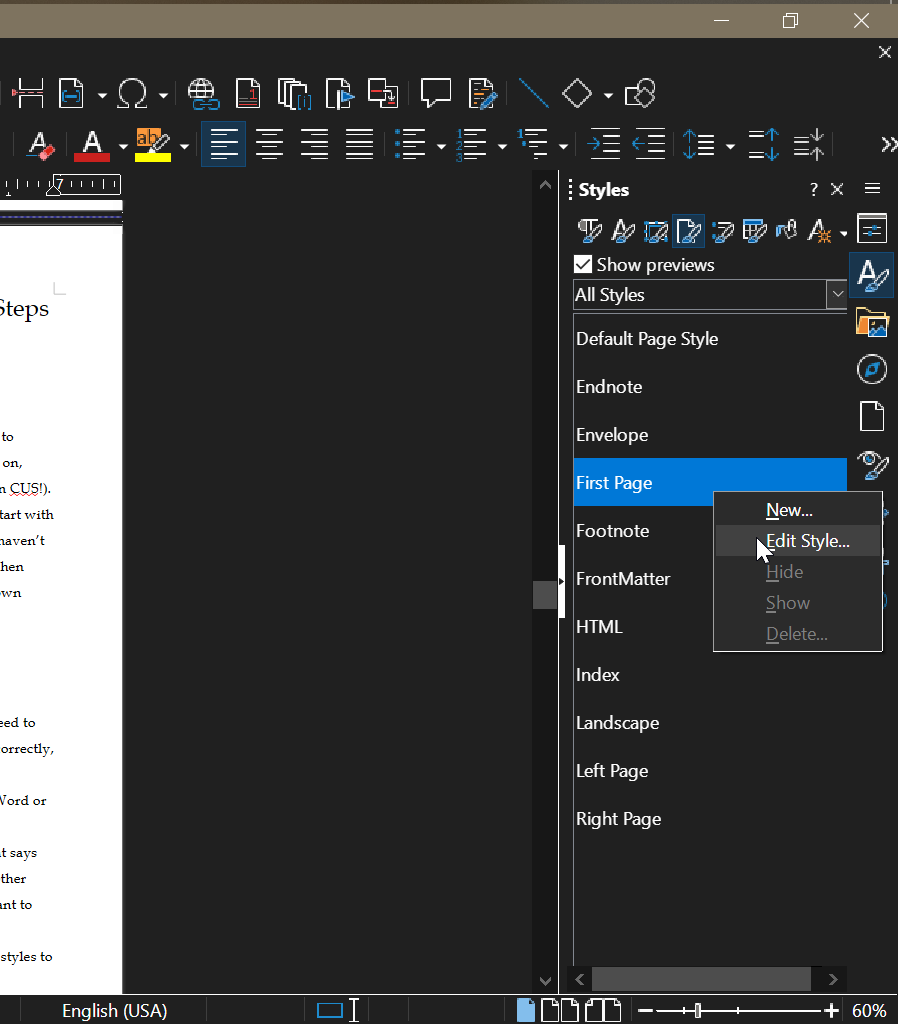
- To convert a page to a different style, click anywhere in the text, and from the styles panel double click the style you want.
- Sometimes you will need to insert a page break in order to disrupt the automatic pagination, like at the end of each chapter.
- How? Go to Insert (top menu) > More Breaks > Manual Break > and select preferred page style.
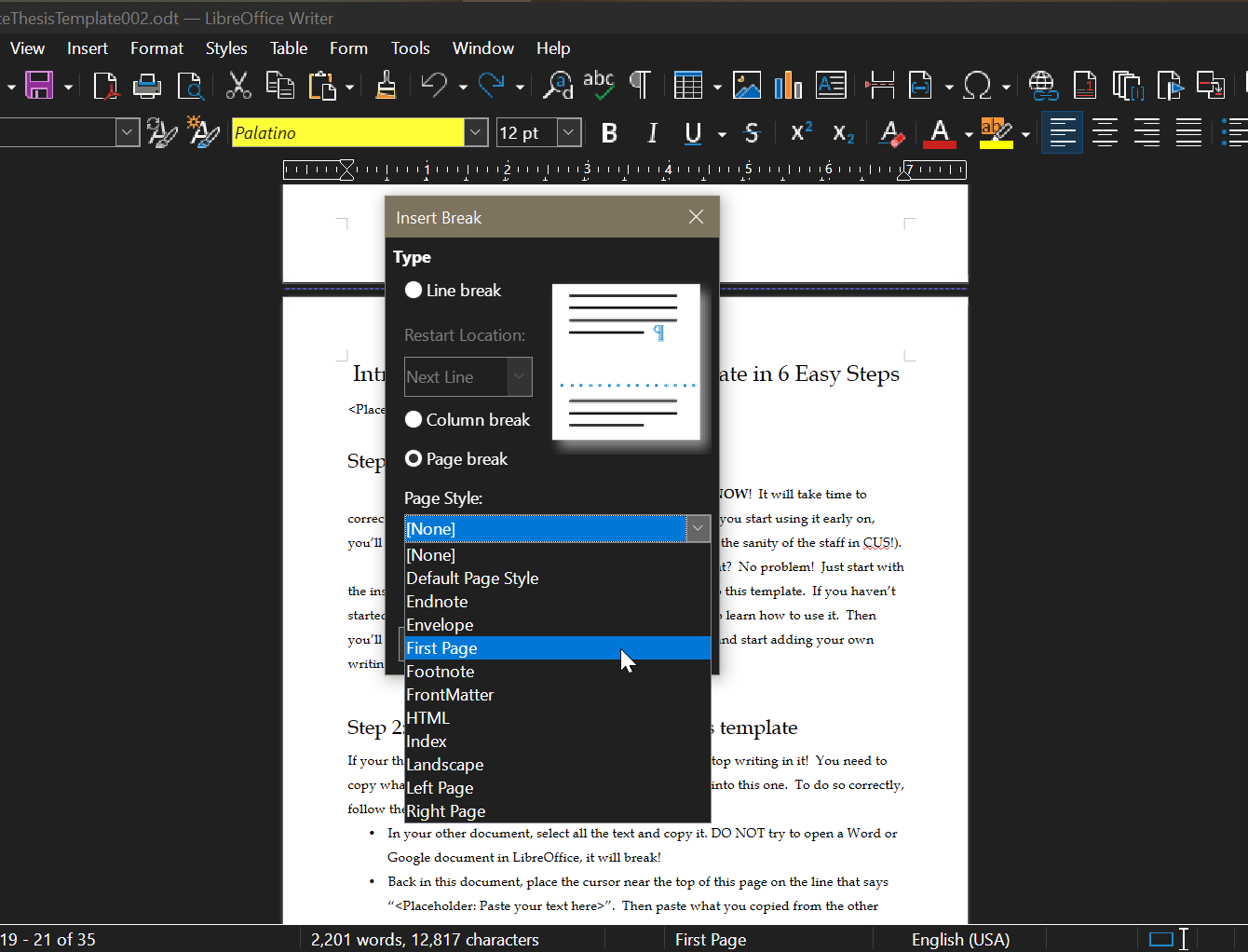
First Page Style
- In all theses, the frontmatter, backmatter, and first page of each chapter must fall on the right side, and have no page numbers, like a book.
- To ensure this, make sure these pages are in First Page Style.
- At the end of each chapter, insert a manual page break to make the next page FPS: Insert (top menu) > More Breaks > Manual Break > First Page Style.
- Tip: In Microsoft Word, this process is done with "Odd Page Section breaks".
- What should be in First Page Style:
- Front Matter (Title page, Table of Contents, etc).
- Back Matter (Bibliography, Apendices, etc).
- First page of each chapter.
- Troubleshooting FPS:
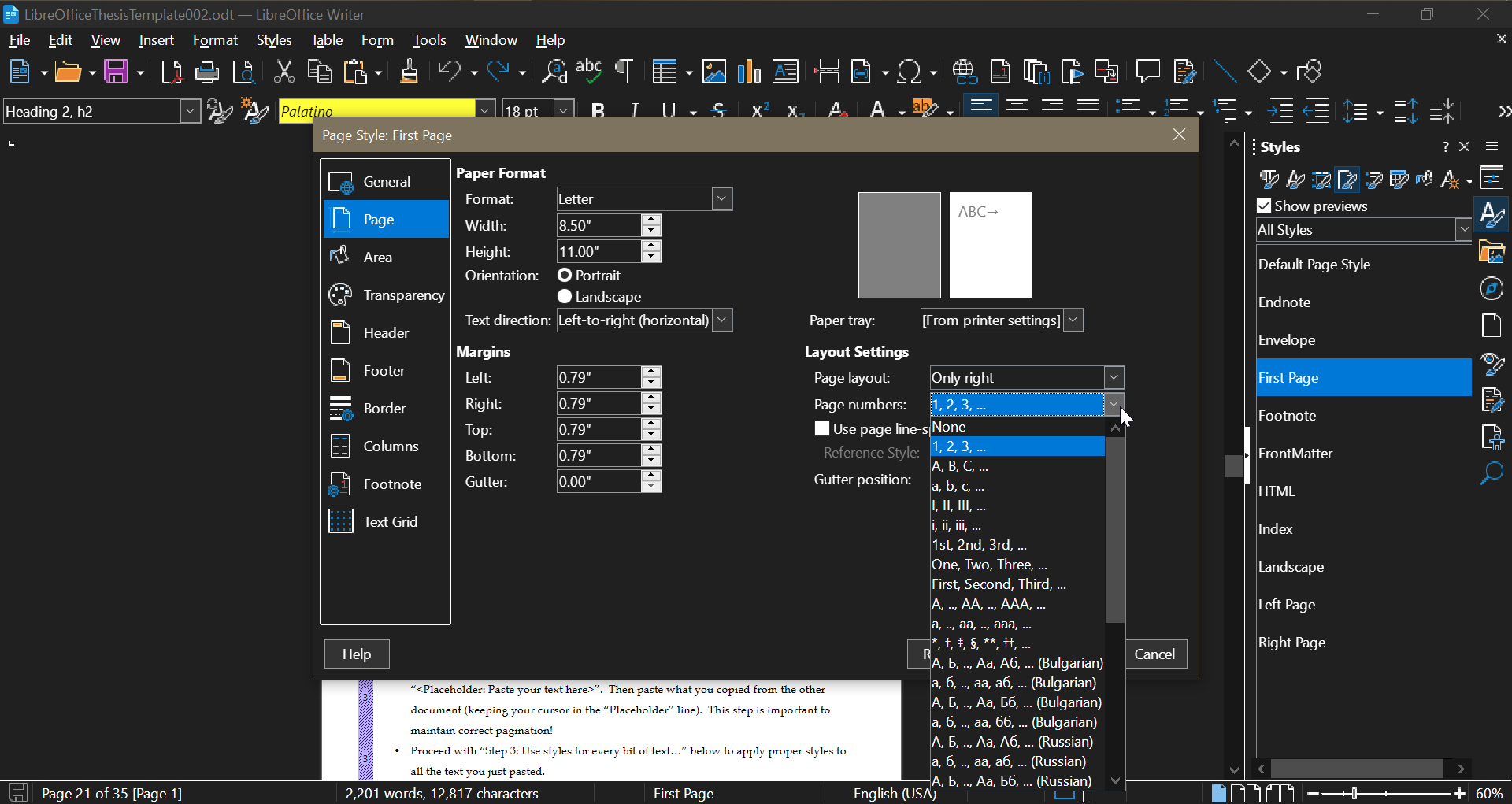
- If page numbers appear in First Page Style, go to “edit style” and set page numbers to “None”.
- If page numbers are still visible, make sure the page is in First Page Style, not Right Page.
- If your Frontmatter is on the left side, showing page numbers, or other weirdness, they may not be in First Page Style anymore. If they are not, insert a manual break set to FPS at the end of each section until it all looks right.
- If the page number just says “Page Number”, go to View in the top menu and deselect “Field Names".
- If page numbers appear in First Page Style, go to “edit style” and set page numbers to “None”.
Editing and Comments
- For simplest commenting back and forth, ask your advisor to download LibreOffice.
- Your advisor can edit and comment on your document in Word as a .docx file, and you can read those comments in LO yourself. However, as stated, reopening your thesis as a .docx file in LO will break the formating.
Text/Graphics Styles
- All images, tables, etc are in Graphics style. Text styles operate the same way as Word.
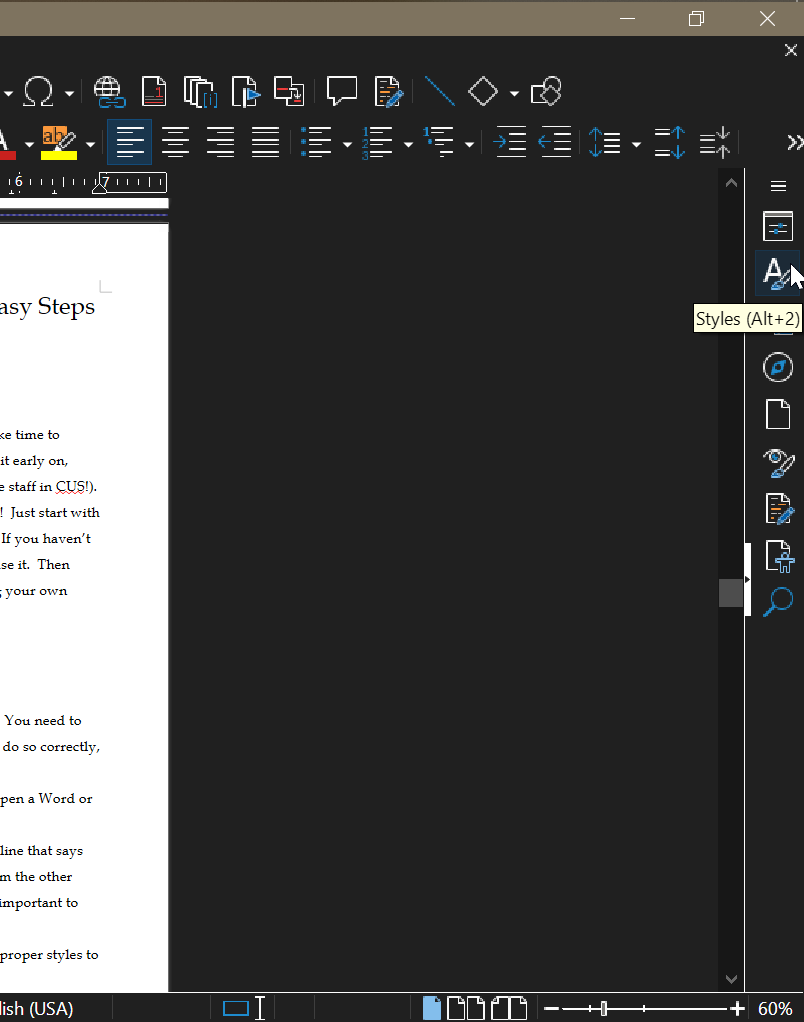
- The styles panel can be found on the righthand menu, with an icon that looks like this:

- With the styles panel, you can select and alter page and text styles.