Strategic Communications & Marketing and Chemistry have a unique copier. Please follow the steps below to set up the new copier (this assumes you already have it installed). If you need to install it, please follow the instructions on our printing webpage.
Mac Instructions
Send a document to the copier
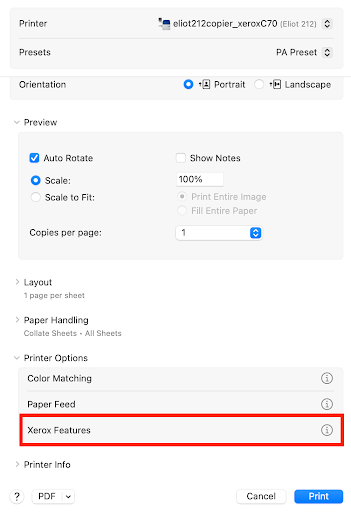
In the print dialog box, scroll down to Printer Features > Xerox Features > click the “i” icon
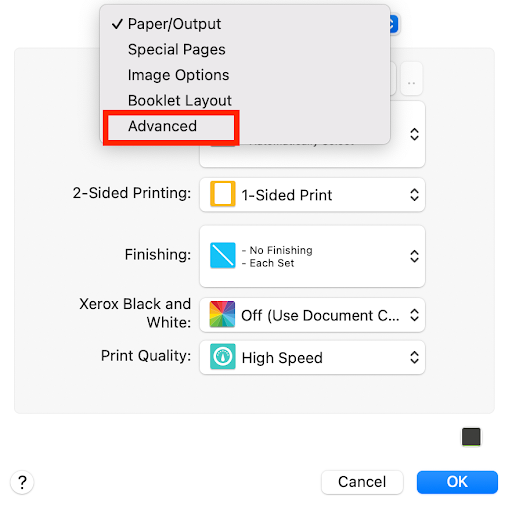
In the drop-down menu at the top, select “Advanced”
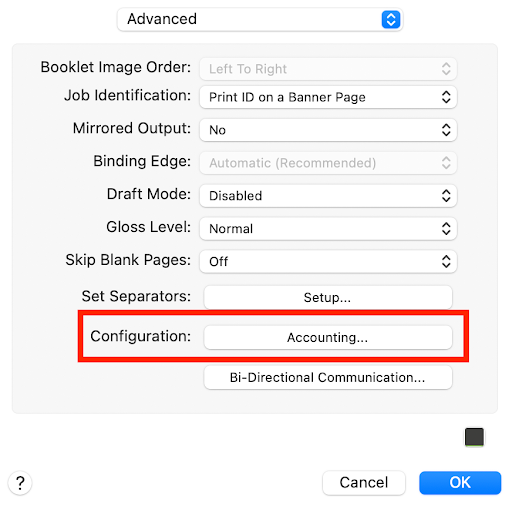
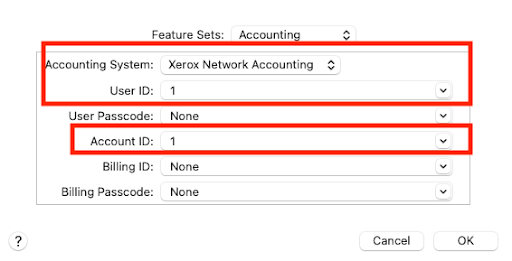
Next to Configuration, click “Accounting”
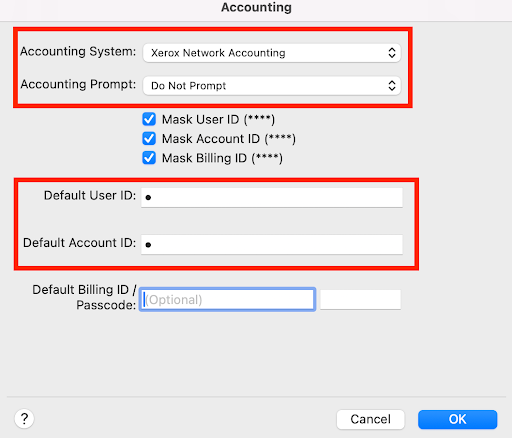
Change the following settings:
Account System: Xerox Network Accounting
Accounting Prompt: Do Not Prompt
Default User ID: enter the number 1
Default Account ID: enter the number 1
Leave all other default options
Your options may look like this:
Click OK
Click OK again
Save the changes as a Preset:
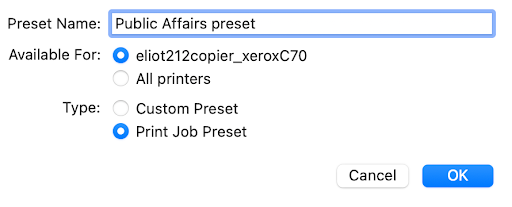
In the Presets drop-down box at the top > Save Current Settings As Preset
Give it a good name (e.g., “Public Affairs preset” or “Chemistry preset”
Make it available for the specific copier (not all printers)
Hooray! You can now print to the new copier!
Add the finishing options
You may need to make yourself a local admin; in Self service select "Request admin privileges
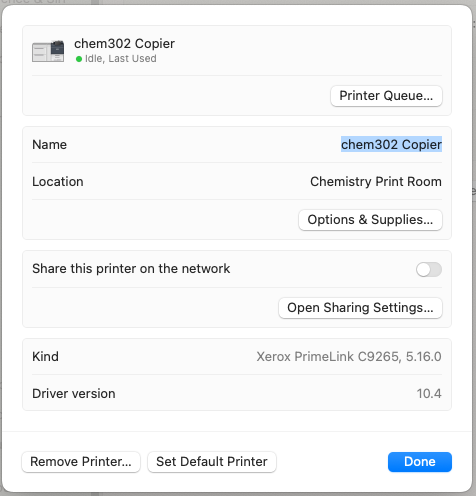
Go to system settings, find the copier, and go to options and supplies
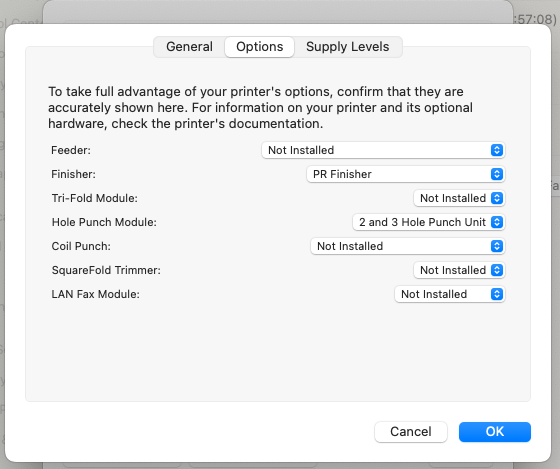
In the options find Finisher and tell it it has the "PR finisher"
You can also add other options like hole punch if it has one
Save your changes
You should now be able to choose stapling options in the print dialog box
Windows Instructions
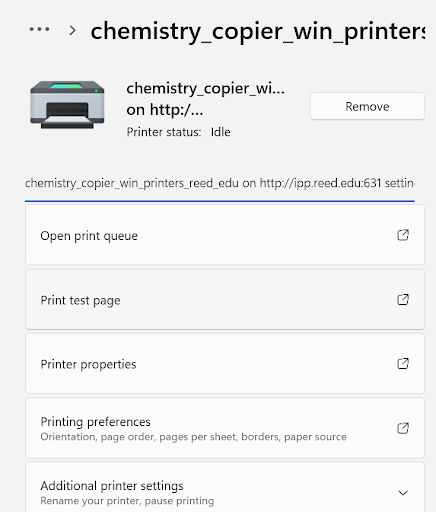
Install Printer (can skip to modify settings steps if already installed)