Contact the Help Desk

Connecting to Reed1x on Windows

Windows 7

  1. Make sure your Windows 7 is up to date. Download the PEAP packages here. There are two different installers for 32-bit and 64-bit versions of Windows. To know which version of Windows you are running, click on the Start menu, right-click on My Computer and choose Properties.
  2. Install the package.PEAP Installer
  3. Go to Control Panel>Network and Internet>Network and Sharing Center>Manage Wireless NetworksNetwork and Sharing Center
  4. In the Manage Wireless Networks window, choose Add.Manage Wireless Networks
  5. Choose Manually create a network profile
  6. .Manually create a network profile
  7. In the new window, enter the settings as shown in the screenshot: 
    • Network name: Reed1x
    • Security type: WPA-2 Enterprise
    • Encryption type: AES
    Reed1x settings
  8. Click Next.
  9. In the next window, click Change Connection SettingsChange connection setting
  10. In the Wireless Network Properties window, click on the Security tab.Wireless Network Properties
  11. Under the Choose a network authentication method dropdown list, choose Microsoft: Protected EAP (PEAP). Then click on Settings
  12. PEAP Settings
  13. In the Protected EAP Properties box, under the Select Authentication Method, choose EAP-Token. In the list of Trusted Root Certificate Authorities, check the box for Equifax Secure Certificate Authorities. Click OK twice and then Close. (If your dialog instead has Addtrust External CA Root, check that box)Equifax
  14. Connect to Reed1x from the list of available wireless networks (accessible from the wireless icon in the lower-right corner of the taskbar).Connect to Reed1x
  15. Enter your Kerberos username and password. Leave the Logon domain field blank.
  16. Kerberos credentials
  17. If prompted by a Windows Security Alert, choose Connect.Windows Security Alert
  18. Your computer may take a few seconds to etablish the connection. If it doesn't reboot your computer and try connecting to Reed1x again.
  19. Contact CUS if you continue to have trouble connecting.

Windows Vista

  1. Make sure your Windows Vista is up to date. Download the PEAP packages here. There are two different installers for 32-bit and 64-bit versions of Windows. To know which version of Windows you are running, click on the Start menu, right-click on My Computer and choose Properties.
  2. Install the package.PEAP Installer
  3. Go to Control Panel>Network and Internet>Network and Sharing Center>Manage Wireless Networks.Network and sharing center
  4. In the Manage Wireless Networks window, choose Add.Manage wireless networks
  5. Choose Manually create a network profileManually create a network profile
  6. In the new window, enter the settings as shown in the screenshot: 
    • Network name: Reed1x
    • Security type: WPA-2 Enterprise
    • Encryption type: AES
    Reed1x settings
  7. Click Next.
  8. Choose Change connection settings.Connection settings
  9. In the Wireless Network Properties window, click on the Security tab.Wireless Network Properties
  10. Under the Choose a network authentication method dropdown list, choose Microsoft: Protected EAP (PEAP). Then click on Settings
  11. PEAP Settings
  12. In the Protected EAP Properties box, under the Select Authentication Method, choose EAP-Token. In the list of Trusted Root Certificate Authorities, check the box for Equifax Secure Certificate Authorities. Click OK twice and then Close.Equifax
  13. Right-click on the wireless icon in the lower-right hand corner of your taskbar and choose Connect to a network.
  14. In the Connect to a network window, right lick on Reed1x and choose Connect.Connect to Reed1x
  15. In the next window, click on Enter/Select additional log on information.Additional logon info
  16. You may be prompted to validate the connection as shown in the screenshot. If so, click OK.Validate server certificate
  17. Enter your Kerberos username and password. Leave the Logon domain field blank.
  18. Kerberos credentials
  19. Click OK in the Validate Server Certificate box if it appears again.Validate server certificate
  20. The wireless status window may say that you have limited access on Reed1x. It is OK. If this procedure does not work, try once more.
  21. Limited connetivity
  22. If it doesn't establish a connection, reboot your computer and try connecting to Reed1x again.
  23. Contact CUS if you continue to have trouble.

Windows XP

  1. Download the PEAP packages here. Use the 32-bit version for Windows XP.
  2. Install the package.PEAP Installer
  3. Go to Control Panel>Network Connections>Right-click on Properties>Wireless Networks tab. Wireless Networks screenshot
  4. In the Wireless Networks tab, choose Add.
  5. In the new window, enter the settings as shown in the screenshot: 
    • Network name: Reed1x
    • Network Authentication: WPA2
    • Data encryption: AES
    Association tab screenshot
  6. Click the Authentication tab. Enter the settings:
    • EAP Type: Protected EAP (PEAP)
    • Authenticate as computer when computer information is available: No
     Authentication tab screenshot
  7. Click the Properties button. Enter the settings:
    • Validate server certificate: Yes
    • Trusted Root Certification Authorities: Equifax Secure Certificate Authority
    • Select Authentication Method: EAP-Token
    EAP Token
  8. Connect to Reed1x from the list of available wireless networks (accessible from the wireless icon in the lower-right corner of the taskbar).Credential request popup balloon
  9. Enter your Kerberos username and password. Kerberos credentials
  10. When prompted to Validate Server Certificate, click OK. Validate server certificate screenshot
  11. Your computer may take a few seconds to establish the connection. If it doesn't reboot your computer and try connecting to Reed1x again.

Dell WLAN Card Utility and Non-Windows Operating Systems (e.g. Ubuntu)

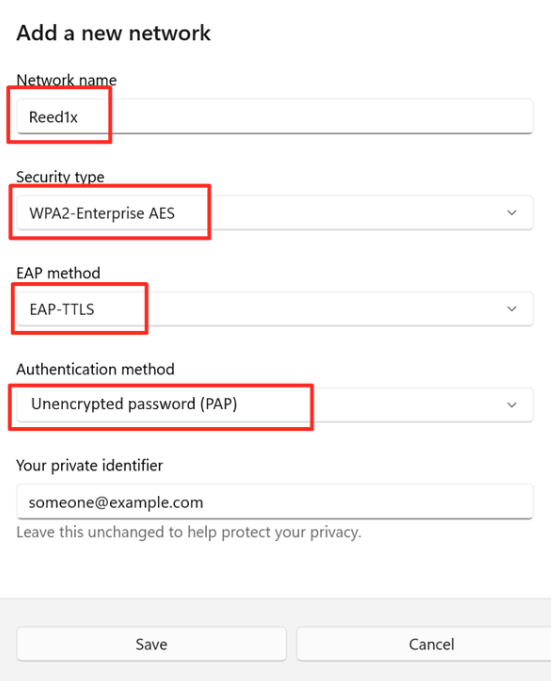
The process for reaching the wireless network configuration window will vary depending on the specific Linux distribution or Windows driver stack being used, but once you reach the settings for the Reed1x network, here are the options you'll need to set:

  • Network Authentication Type: WPA2 Enterprise (if there is a combination option, WPA/WPA2 Enterprise, this will also usually work)
  • EAP Method: PEAP or Protected EAP
  • Inner EAP Method: GTC (Generic Token Card)
  • Username: your Kerberos username (don't append @reed.edu)
  • Password: your Kerberos password
  • Certificate Authority (Ubuntu): this can be left blank