Enabling Cookies in Your Web Browser
If you're having trouble connecting to resources via the Remote Access Proxy, follow these steps to enable cookies in your browser. If you have questions along the way, please contact the Help Desk at cus@reed.edu or call x7525.
Enabling Cookies in Firefox
- Open a Firefox browser window.
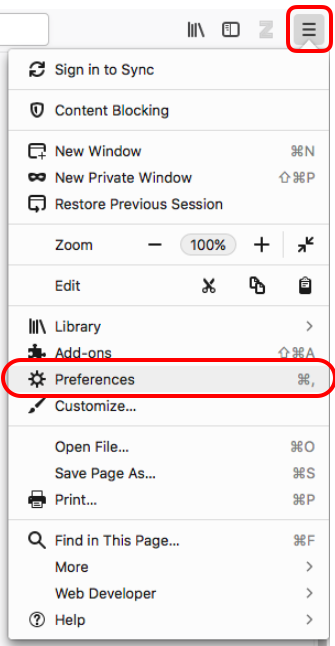
- Click the menu button and choose Preferences
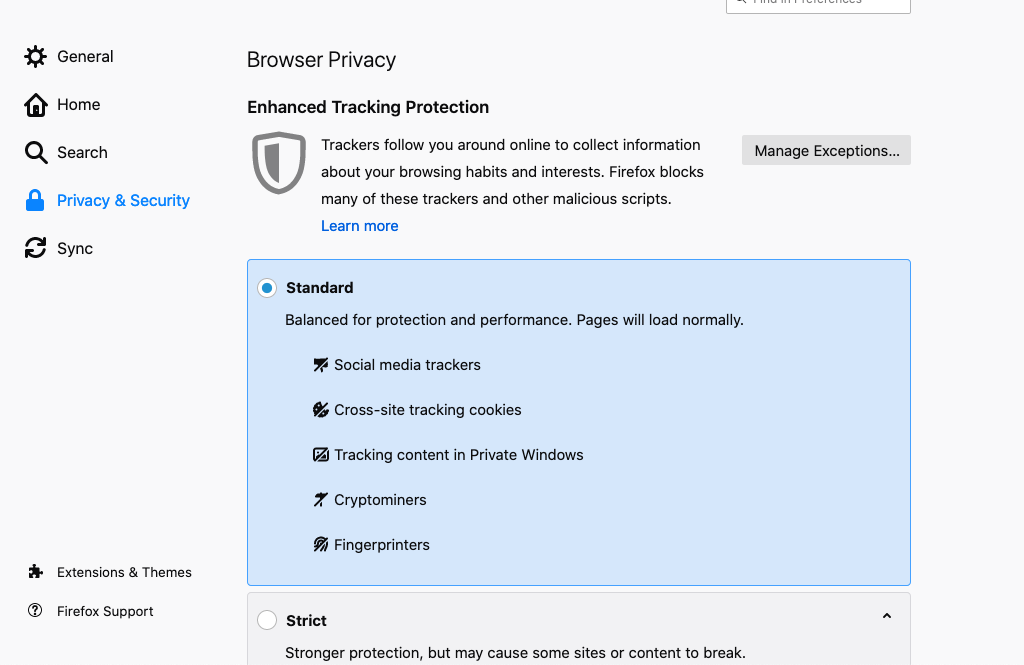
- Choose the Privacy & Security tab, and select "Standard".
Enabling Cookies in Safari
- Open a Safari browser window.
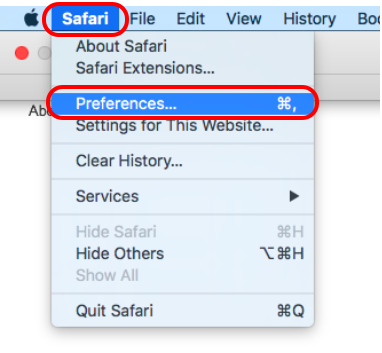
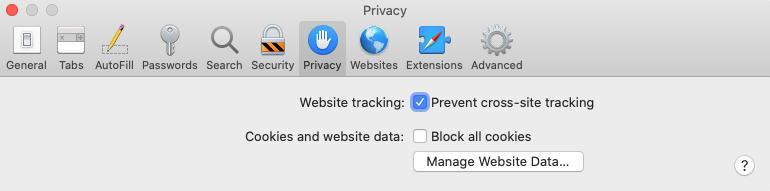
- Go to Safari → Preferences
- Go to the Privacy tab and uncheck "Block all coockies".
Enabling Cookies in Google Chrome
- Open a Chrome browser window.
- Click the menu button and select Settings. Alternatively, enter
chrome://settingsinto the search bar.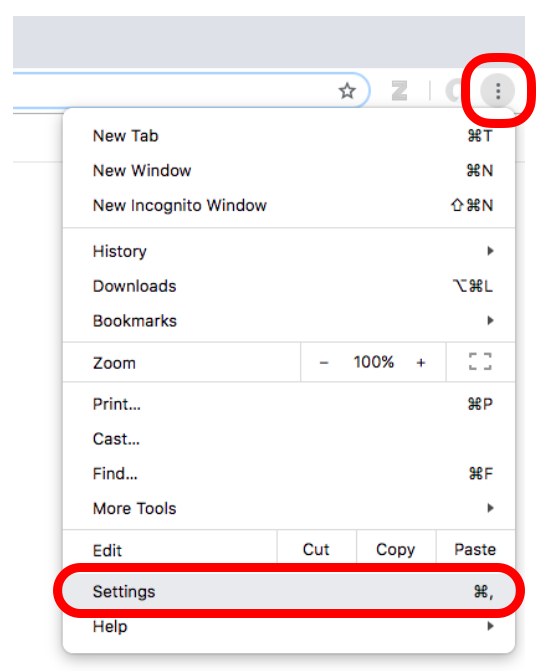
- Scroll down and select Privacy and security.
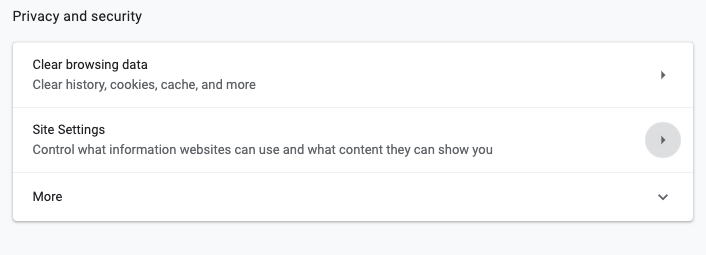
- Click on Site settings and select Cookies and site data
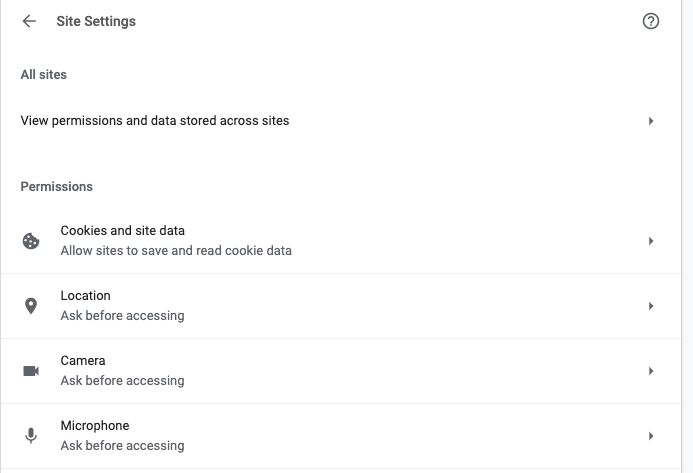
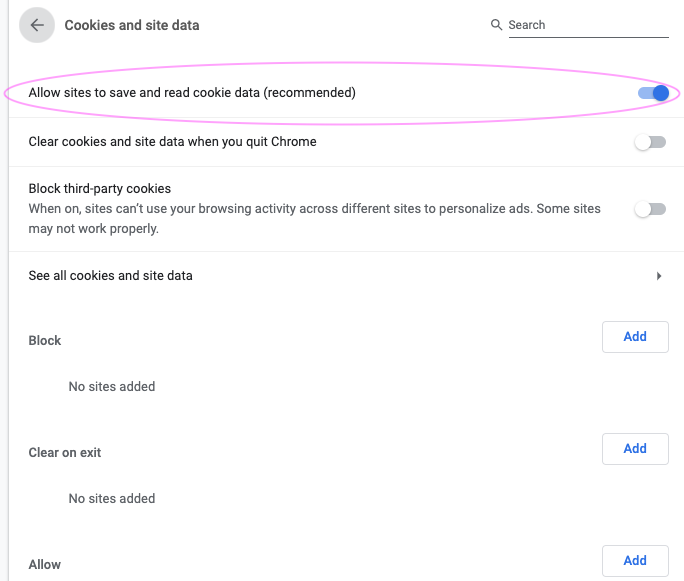
- Enable "Allow sites to save and read cookie data".