Regions
Reed’s Cascade web template is composed of multiple regions, such as the site banner and site navigation. Most often you'll be editing the content in the middle of the page. This region is called "main content." To start editing the main content region, select a page from the asset tree and click Edit.

Editing Window
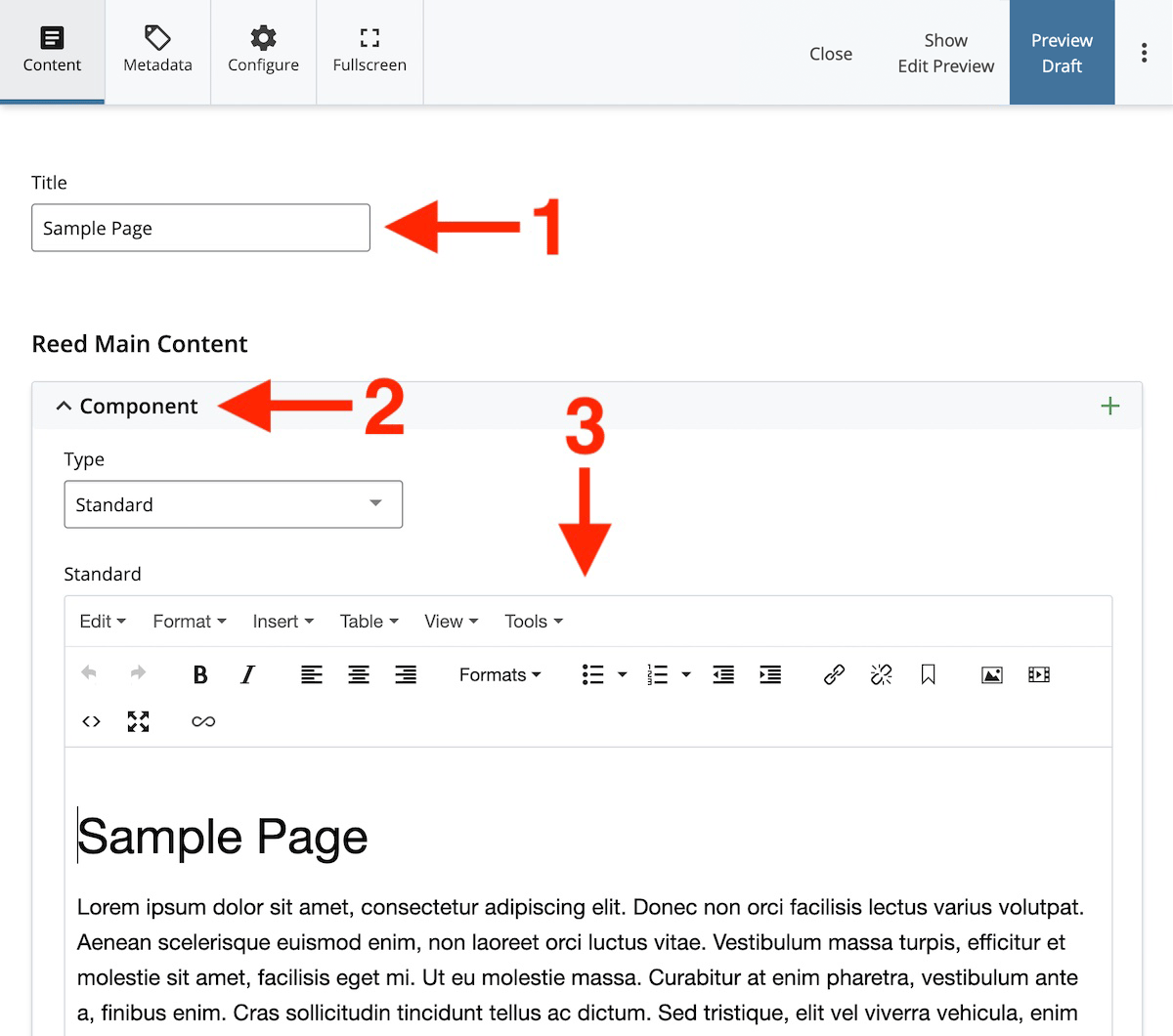
The editing window (shown below) has three important parts:
- The title is the title of the page, and the label displayed on your web browser's tab for this page. It should be in alignment with the heading you give the page in the "standard" content box, where the red #3 is pointing, below.
- Pages can be made up of one or more modular components. Select "standard" in the "type" field (see the Components page for information about the other types).
- The content tab is where you'll create new or modify existing content.
Create Content
The menus and buttons in the content editor give you options for formatting text, adding links, and inserting images and tables. Always keep in mind our accessibility best practices when creating content.
Show edit preview (optional)
Preview your changes as you type by clicking the Show Edit Preview button at the top of the screen. Note: the preview window may be fairly narrow, so the web page may display in "mobile" mode. Click Preview Draft instead to see your changes in a larger window.
Save your Changes
When you are done editing page content, it's time to preview your draft, submit, and publish.