After editing your content, there are several steps you will take to save your changes and, eventually, make the page public by publishing.
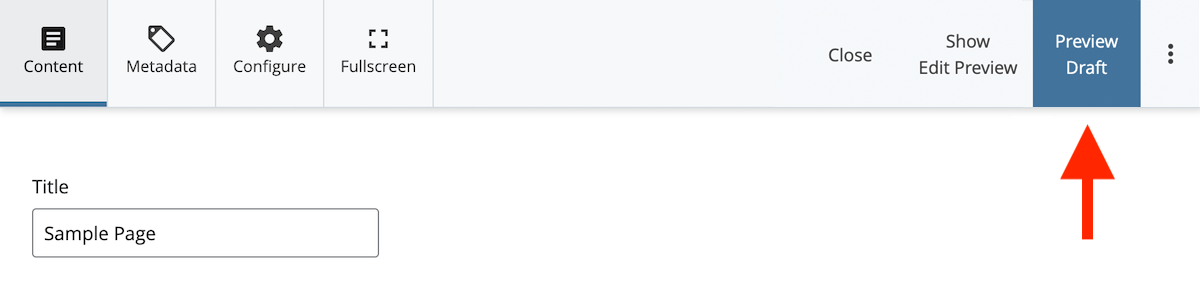
- Preview Draft: This step allows you to review the changes you've made to a web page.
- Submit: If you’re happy with your draft, click “Submit” to finalize your changes.
- Publish: When you are ready to make your content public, follow the steps outlined below to publish.
Preview Draft
While you were editing, Cascade was automatically saving your changes in a draft. Even if your computer were to freeze up and shut down while you were editing, all your hard work would still be saved in this draft. The first step in finalizing your changes is to click Preview Draft.
Submit
The draft preview shows you what your changes look like in the context of the rest of the web page. This is a good time to look through your changes for potential errors. There are four things you can do with your draft:
- Toggle between viewing the last submitted version and the current draft if you want to remind yourself of what the page looked like before your changes.
- Submit the draft to finalize your changes.
- Discard all your changes if you don't want to keep them. Note: discarding is permanent and can't be undone.
- Edit the draft to continue making changes.

Publish
Publishing is the process of sending updated pages from Cascade to the live web server, allowing it to be seen by your visitors. You can publish a single page, multiple pages at once, or your entire website.
Publish a single page
This is the most common method of publishing and should be done every time you submit page changes. After submitting, click the Publish button above the page.

After clicking Publish, a window will pop up asking you to confirm. Click Publish again in this window. Your publish job is now queued up (this usually takes only a few seconds, but may take longer if others are publishing at the same time).
Publish multiple pages
There are a few times when you might want to publish multiple pages, or even your entire site, at once:
- You edited a number of pages but forgot to publish them individually.
- You made changes to the site navigation, secondary content, or any other part of the page that is reused on many pages.
- You moved or renamed a folder.
In each of these cases, the simplest thing to do is to publish the parent folder that contains the relevant pages or files. First, select the folder from the asset tree: hover or focus your mouse on the folder name then click the arrow that appears to the right.
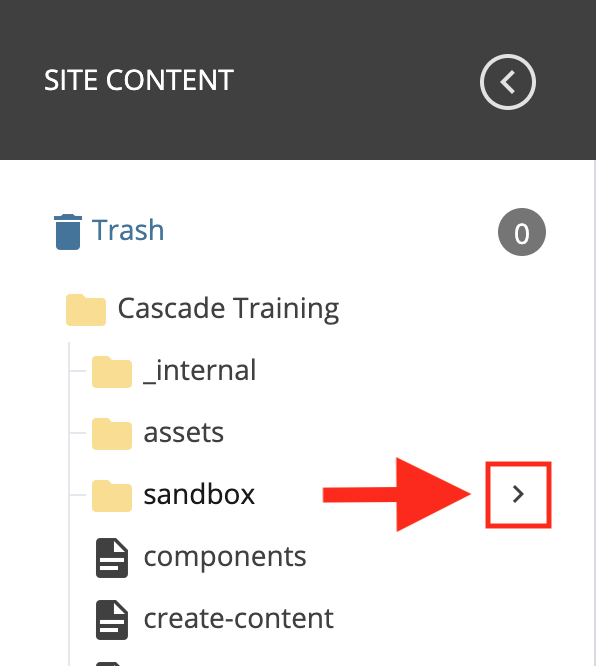
The contents of the folder will be displayed in the main part of the window. Now the process is the same as publishing a single page: click the Publish button and confirm. Everything in the folder will be queued up to publish.