Organizing Files
It's important to know where a file "lives" on your computer, meaning knowing which folders lead to your file. Understanding file structures will help you stay organized and make it easier to find or relocate files.
Once you understand the basics, see the Practical Guide to Files.
 File Structures
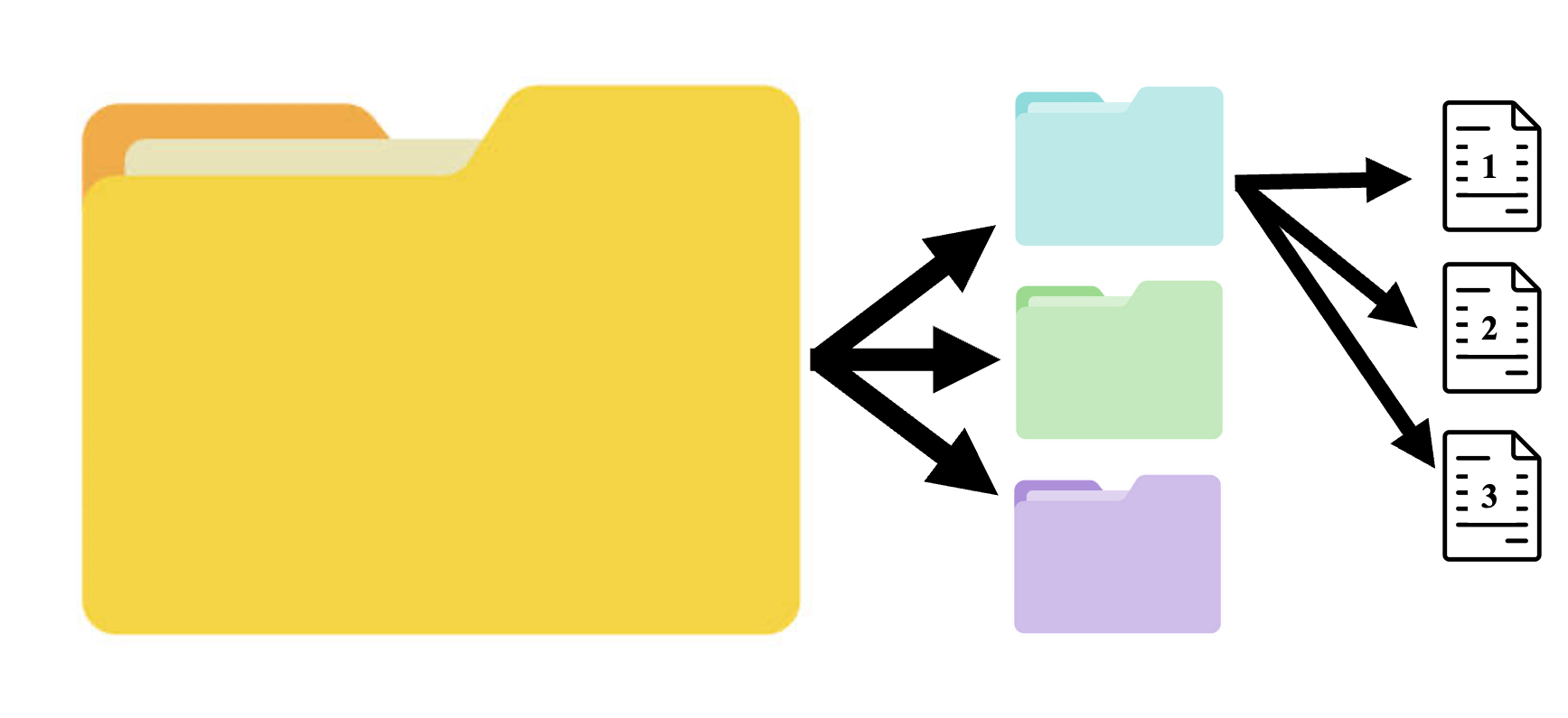
Your computer organizes information using a hierarchical structure. This means when you save a file it is saved inside a folder, and that folder can be stored inside another folder. That's really all there is to file structuring–just folders inside folders–but you need to be aware of how this works to ensure that you can easily find files when you need them.
You can think of your computer like a clothes dresser. Each drawer would be a folder. Within the drawers you might have sections, like a stack for shirts or an area for socks. These would be subfolders. Within each stack you have your individual shirts, which are your individual files. When you put away a shirt, you organize it by drawer and then by stack.
Your computer behaves the same way. By default, any file you download or create is inside a folder. An example of this is when you download a file it may automatically go to your Downloads folder, or if you save a Word file it may save to your Documents folder. Your Desktop is also its own folder. All three of these folders are likely inside a home folder. In the image above, your home folder would be the yellow folder and your Desktop, Documents, and Downloads folders would be the other three colors, then the individual files live inside those folders.
Documents, Desktop, Downloads
These three folders are the most important for you to know about since they will be your most used.
The Documents folder is where many people keep the majority of their files. Inside it, you might want to create a folder for each of your classes, and you may go further and create subfolders within each class folder to organize your files.
Alternatively, you might prefer to be able to access things directly by clicking on your Desktop, so you may want to store files there. Any files or folders that are in your Desktop folder will appear visually on the Desktop screen.
Your Downloads folder will be the default destination location for anything you download. You can leave things in your Downloads folder and access them directly from there, or you can move them to a more organized location, like inside one of your class folders. Sometimes you can set the folder location you'd like to download things to and other times you will have move things out of your Downloads folder and drag them to your Documents, for example.
Storing files can be thought of similarly to storing your clothes: you can just keep everything in a laundry basket and dig through it to find a specific shirt, or you can separate items and store them in drawers. The latter method is better for computing and for having your socks match.

Why Bother with Folders?
We live in a world where most interfaces we interact with are searchable by keyword. And it is true that you can search for files by name on your computer. So, if you can just do a keyword search to find a file, you may think “why wouldn’t I just keep everything all in one folder?”.
Perhaps the most practical answer why you should organize your files is that your professors will expect you to. For pre-Gen Z generations, file structuring is the norm and we feel a great sense of self-satisfaction if we have a tidy desktop and non-chaotic downloads folder. You may not gain as much satisfaction from organizing your files, but if your professor asks you where you've stored a file on your computer, you'll want to be able to answer.
There are many reasons you should keep files organized:
- Folder structure is actually meaningful. Sometimes files will download together in a folder and must stay in the same folder to be properly accessed. If you accidentally move something to a different folder, even though you can search and find the file, you won’t be able to open it because it needs to be housed with its other files to be accessed. An example of this you may encounter at Reed is if you end up working with any files that produce maps. To properly render the map, you need to keep all its data files in the same folder.
- Some programs are not capable of searching for files on their own. If you’re working in a coding language, like R or Python, and you’re trying to open a data file, you will have to explicitly tell the program where to go to find it by typing out the file path.
- It speeds things up. If the computer is told to look in a particular folder for a file, it knows where to go instead of having to search through every single file on your hard drive.
- Folders will actually help you find things. Say you saved a document and you called it something like “draft”. Searching for “draft” might result in finding things like “final_draft”, “draft1”, or “draft_for_real”. First, you’ve done a bad job naming files. But second, you’ll have to open every file to know which one is correct, but if you had them sorted into folders like “Hum” or “Bio”, you would at least narrow your search. Having things sorted into folders also means you can have two files both called “draft” so long as they are each in their own folder.
- Your professors (and others) will like it. If you’re working on shared files, say in Google Drive, it is often easier for your collaborators to find what they’re looking for if you have your files arranged in an orderly, nested fashion.
See the Practical Guide to Files for naming conventions and file paths.