Practical Guide to Files
This guide covers the mechanics of working with files on your computer: how file paths work, where to find them, and how to name your files so you can find them in the future. If you're wanting to know why this stuff is important, see the file structures page.
- What is a file path?
- Reading a file path
- File extensions
- When do you need the full path
- The secret to finding the path (if you read only one thing, read this!)
- File naming conventions
What is a file path?
A file path is both the route you take to get to a file and the way your computer names files. A file's real name isn't just what you enter when you save the file — you're essentially giving it a first name, but it also has a last name that includes every folder it is nested in.
Reading a file path
Here's an example:
File name (first name):
"draft.docx"
Nested folders (last name):"User/doyleowl/Documents/Ornithology"
Full name:"User/doyleowl/Documents/Ornithology/draft.docx"
When we list the nested folders, we list the outermost folder first, and every subsequent folder is inside the preceding one. We use / to separate the folder names. In this example, the file is inside a folder called Ornithology, which is inside Documents, which is inside the username folder doyleowl, which is inside the base folder User.
We'll continue with the clothing analogy from the file structures page. We'll say you live in a house with roommates and you keep your clothes in a dresser. The house is like your User folder—unless you're doing major construction, you don't ever do anything at the house level. Your username folder, here doyleowl, is like your room in the house; this folder is generally called your "home" folder. The dresser itself is the Documents folder. The drawer for pants is the Ornithology folder, and the file draft.docx is an individual pair of pants.
For most computing, you're unlikely to need folders outside your home folder. Because of this, the beginnings of file paths are always the same, and they only become more variable as they get more specific.
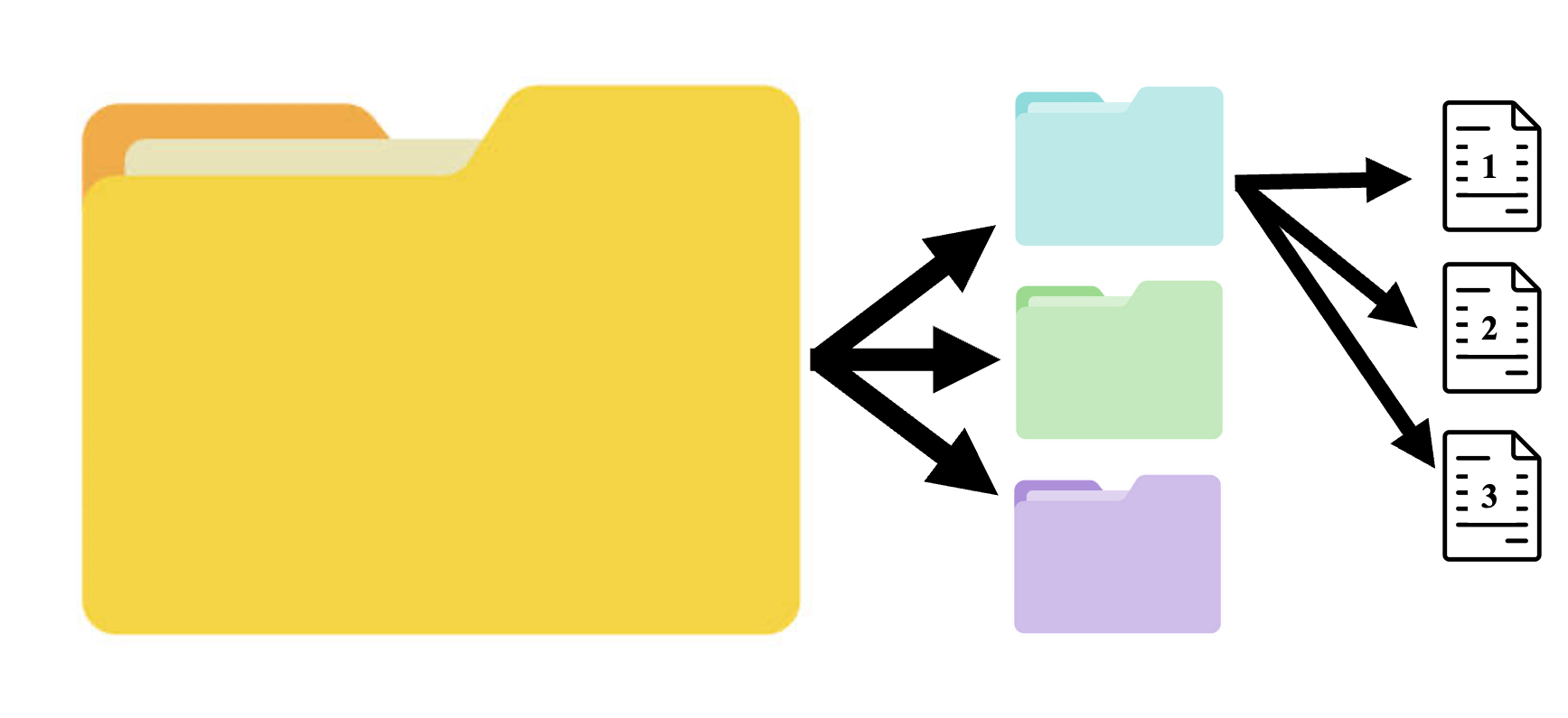
In the image below, the file path for File1 would be "Yellow/Blue/File1.pdf," because the file is inside the blue folder, which is inside the yellow folder.
File extensions
Full file paths end in an extension, which describes the type of file. If File1 is a Word document, the full path would be "Yellow/Blue/File1.docx"; if it's an Excel spreadsheet, it would be "Yellow/Blue/File1.xlsx."
A few things worth knowing about extensions:
- They're required when referencing a file. Leave one off and your computer will think you're looking for a folder instead.
- You can have files in same folder with the same name, so long as they have different extensions. You can have "draft.docx" and "draft.pdf" in the same folder—different extensions make them different files.
- They're always there, even when hidden. Sometimes your file system may just show "draft" without showing the extension, but even if it isn't displayed the extension is always there and is included in the full path.
When do you need the full path?
If you are coding or using specific software, you will likely need to know the full path for your file. But more commonly what's actually useful is just knowing the general route you'd click through to get to your file. In your Documents folder, you might have a folder for each class, and within those, folders for each week or assignment. When you download any new files, you should move them to your organized folders so that you know the path to take to find the file, even if you forgot what you named it.
The secret to finding the file path
There is a shortcut on your computer for copying the file path. This is a great thing to use because you are directly copying, so you won't have typos or missed subfolders.
On Mac:
option key and this will change to say "Copy as Pathname". Click that. It will copy the full path ("User/doyleowl/Documents/Ornithology/draft.docx" in our example) to your clipboard and you can then paste it in wherever you need it. 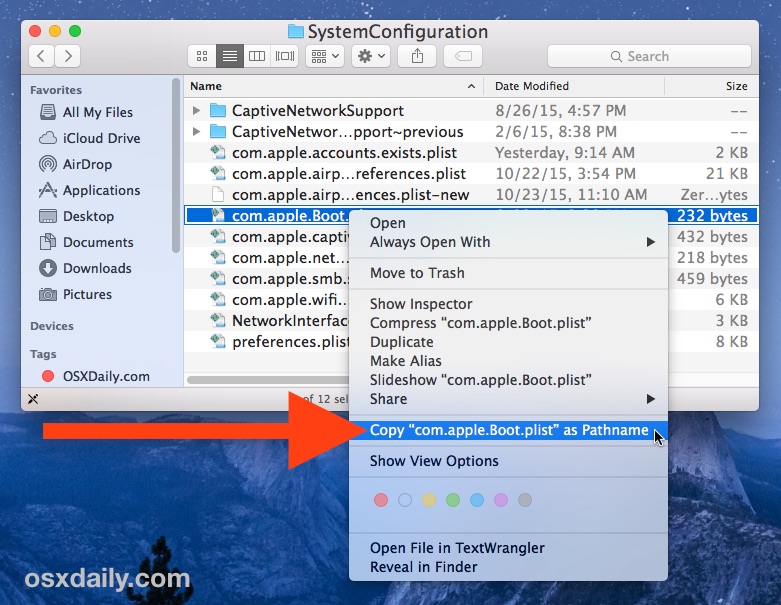
On Windows:
shift key and this will change to say "Copy as path". Click that. It will copy the full path ("User/doyleowl/Documents/Ornithology/draft.docx" in our example) to your clipboard and you can then paste it in wherever you need it.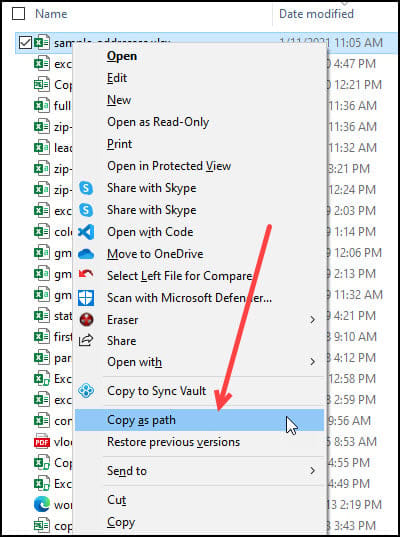 Image credit: https://www.timeatlas.com/copy-file-path/
File naming conventions
You may sometimes find yourself naming things like "draft", "draft_final", "draft_working", "draft_use_this", "draft_for_real_this_time". This obviously isn't great.
Here are some general guidelines for naming files, so that you understand what they are and they are easily findable in the future.
- Provide enough information to uniquely identify a file. For example, you could include the date in your title so that you know which version is most recent. "draft_01_05_2026" and "draft_01_12_2026" or "draft_01.05.2026" and "draft_01.12.2026" would work better than "draft1" and "draft2"
- Avoid spaces in filenames. Not all software applications can read in files with spaces or sometimes they will add additional characters if there is a space. This becomes a hassle to deal with, so it's best to use one of two conventions:
- snake_case: uses underscores
_to connect multiple words - camelCase: uses capitalization to connect multiple words
- snake_case: uses underscores
- No special characters. Many software applications cannot read them in and most applications won't even let you save anything that contains certain characters.
- Avoid these:
& , % # ; * : ( ) ! @ $ ^ ~ ' { } [ ] ? < > + = / - Periods
., hyphens-, and underscores_are generally allowable
- Avoid these:
- Don't begin with a number. Again, some applications don't like when the first character is a number. "5draft" would not be acceptable, but "fivedraft" would work.
- Use a consistent format for dates. Choose a convention like DD_MM_YYYY or YYYYMMDD and stick with it.